
| Budget Workbook Help | Index |
|
Transactions |
The top section of the main window is used to enter your transactions. It has six fields for you to enter basic information about any expense you have.

How To: Enter your expense information
|
| Note: The Expense Paid To and Category fields have popup menus. The workbook places the most recent 10 transactions in the popup menu. See the Preferences topic for information on how to change the number of recent transactions placed in the menu. Both fields use auto-complete so typing a few letters will aid repetitive entries. The Categories field contains a list of predefined categories that you can use. You can also enter any category you choose directly in the field; it will be added to the list making repetitive entries simple. |
The bottom section of the main window displays your transactions.
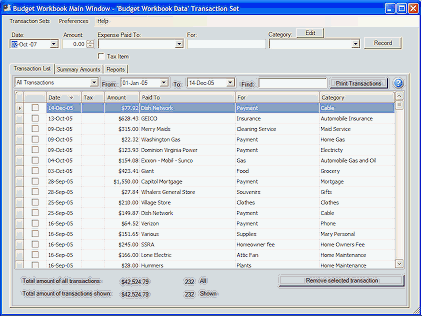
You can sort any field by clicking in it's column header.
Use the popup menu to select predefined date ranges or enter any date in the From and To fields to display transactions within that date range.
You can search for any transaction by entering a few letters that are in the transactions Paid To field into the search box at the top right.
Use the Print Transaction button to start your browser with a copy of the currently displayed transactions. You can then use your browsers print function to print your transactions.
| Note: There is a checkbox on the left side of the table. This checkbox can be used to mark transactions for your own reasons. For example, if the money is going to be reimbursed by your employer, or a friend is going to pay you back. |
At the bottom total information about your transactions is displayed.
See also the Summary topic for displaying transactions from the Summary Amounts tab.
You can change any field in a transaction. To do so, just double click the field you want to change in the transaction table and enter the change.
You can remove any transaction. To do so, just select the transaction in the table by clicking it once and then click the Remove button. You will receive a warning asking if you really want to delete the transaction.